White Background for Photo: How to Make Any Background White Online
Add a white background to any photo online with AI. Steps for product, profile, and passport-size photos, plus how to get a pure, plain white result.

A plain white background makes almost any photo look cleaner. It is what marketplaces like Amazon and Flipkart expect for main product images, what many forms ask for in a passport-size photo, and what makes a profile picture look neat on LinkedIn or a resume. But most photos are taken in real places, like a bedroom wall or a busy street.
This guide shows how to make a photo background white online in a few steps, how to get a truly plain white result when you need one, and what to check before you use the photo for a listing or a document.
What "white background" actually means
There are two kinds of white background, and it helps to know which one you need.
- A clean, bright white look. The background is white or near-white, maybe with a soft shadow under the subject so it looks natural. This is fine for most social posts, profile photos, and catalogues.
- A pure, flat white. Every background pixel is the same white (often written as
#FFFFFF). Some marketplaces and some official photo rules ask for this, and it matters when you place the photo on a white web page and do not want a visible box around it.
An AI tool usually gives you the first kind by default. Below you will see how to get the second kind as well.
How to add a white background to a photo with PerfectifyAI
You can do this in the browser on a phone or a computer. There is nothing to install.
- Open the PerfectifyAI Background Changer.
- Upload your JPG, PNG, or WebP photo.
- Make sure Background Changer is selected.
- Choose the White preset. For a plainer result, choose Custom and type something like "put the subject on a plain white background".
- Choose Change background.
- Enter the email address where you want the download notification and complete the human-verification step.
- Download the new photo and zoom in on the edges, especially around hair, fingers, and thin parts of a product.
If the first result is not quite right, try again with slightly different wording, such as "plain bright white studio background with no shadows".
Important: Background Changer is an AI tool, so the White (and Black) preset may not be applied as a flat, exact colour. The AI uses the preset as a reference and matches the tone and colour scheme to your source image, so you may see a soft shadow, a light gradient, or a slightly warm or cool white. If you need a pure white or pure black background:
- Option 1: choose Custom and ask it to put the subject on a plain white (or plain black) background.
- Option 2: remove the background first with the Background Remover, then apply white or black to the transparent image.
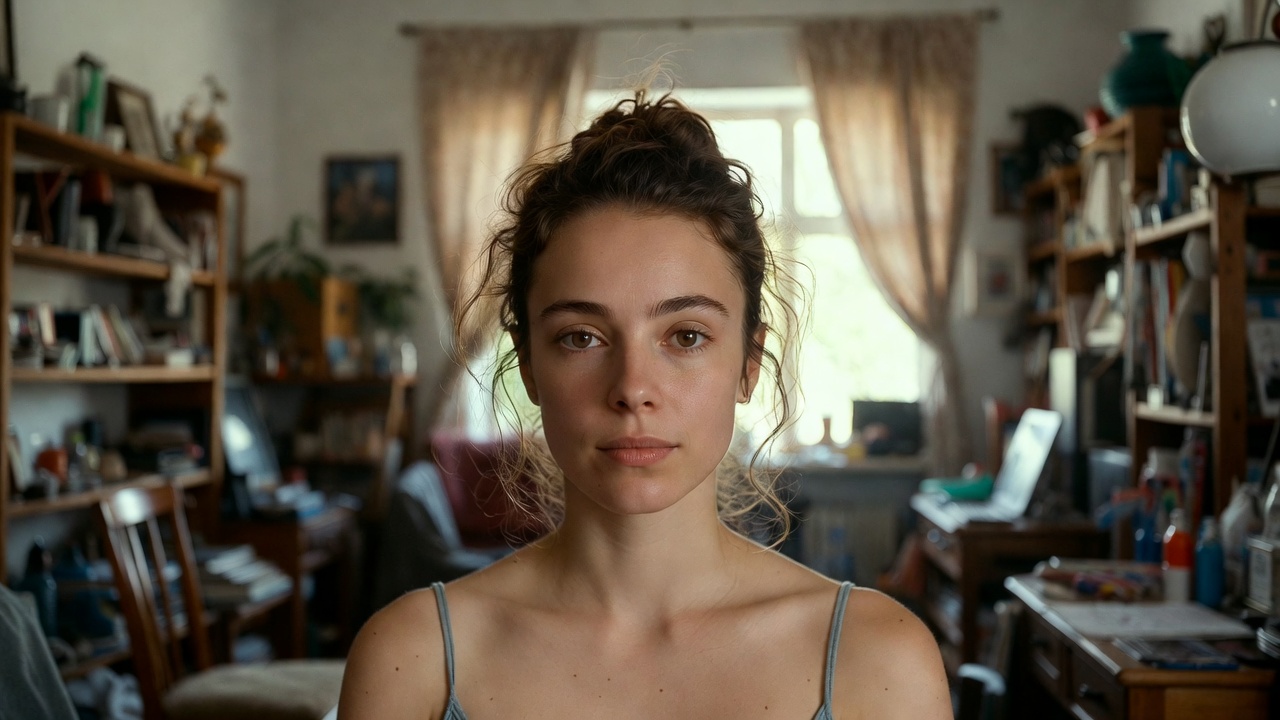
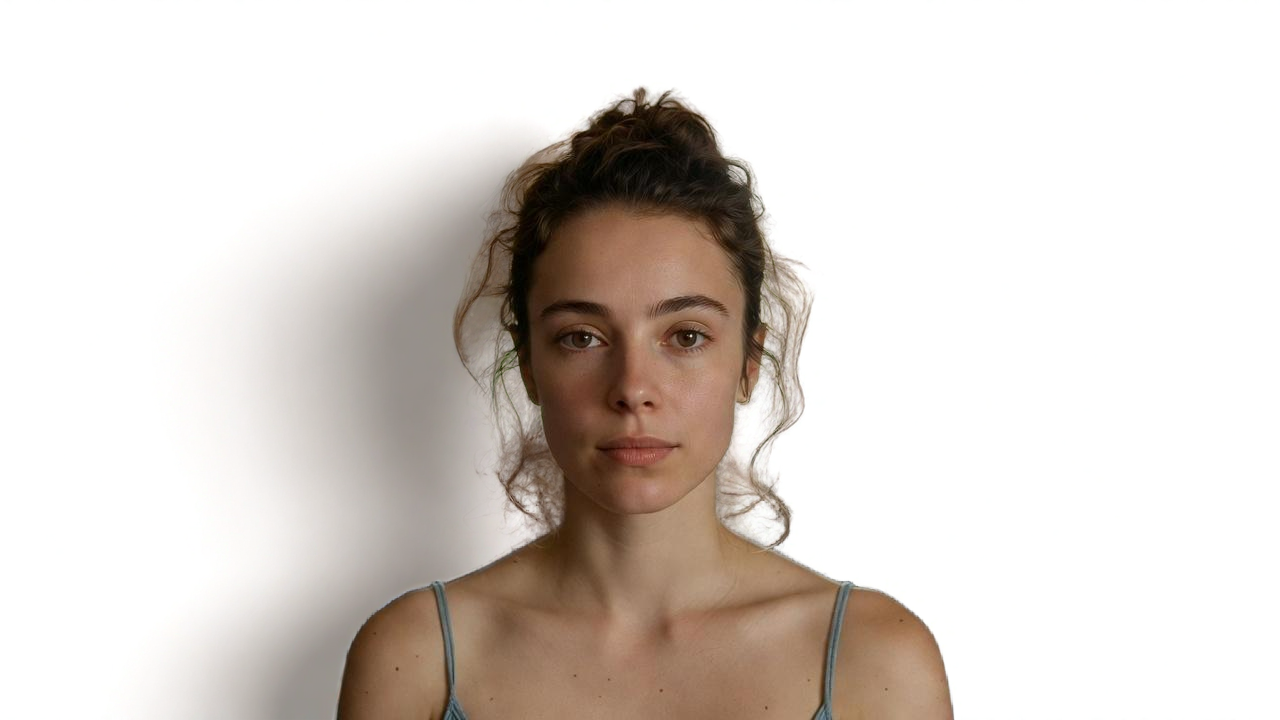
Here is a real example. The first image is a portrait taken in a cluttered room, with shelves, curtains, and a window behind the subject. The second is the same photo after running it through Background Changer with the Custom option and the prompt "put the subject on a plain white background". The room is gone and the subject is on a white background with a soft, natural shadow on the left, which is the kind of result you can expect from an AI tool (see the note above). Zoom in on the loose strands of hair and the shoulders: that is where a leftover tint or edge is most likely to show.
Before: the original portrait in a cluttered room.
After: the same photo on a white background.
Getting a pure white background, step by step
When the exact colour matters, the most predictable route is to split the job into two steps.
- Remove the background. Upload the photo to the Background Remover. You get a PNG with only the subject on a transparent background. Our guide on how to make an image transparent explains how transparent PNGs work.
- Apply white. Run the transparent PNG through the Background Changer with White, or place it on a white canvas in any editor you already use, such as Canva, PowerPoint, or Photoshop.
- Check the result. Open the final image on a white page. If you can see a faint box or tint around the subject, the background is not pure white yet. Adding the cut-out to a
#FFFFFFcanvas yourself is the surest fix.
If you already use Canva or Photoshop, see how to remove a background in Canva or in Photoshop and GIMP for the manual way.
White background for different kinds of photos
Product photos for online selling
A white background keeps the buyer's attention on the product and makes a shop page look consistent. Shoot the product in good daylight, keep the whole item in the frame, and leave a little space around it. Then make the background white and check the listing rules of the marketplace you sell on, since some ask for a specific white and a minimum image size. For more selling tips, read how to remove the background from a product photo.
Profile photos and resumes
For LinkedIn, Naukri, or a resume, a white or very light background looks professional without being distracting. Here a soft, natural white with a gentle shadow often looks better than a hard, flat white, so the White preset is usually a good fit.
Passport-size photos
Many people search for how to make a passport-size photo background white, especially in India. You can use the same steps: upload a clear, front-facing photo, choose Custom, and ask for "a plain white background", or remove the background first and then add white.
Please keep in mind that official photo rules cover much more than the background colour. They also set the photo size, head position, lighting, expression, and how recent the photo must be, and they differ between countries and offices. Changing the background does not make a photo compliant on its own. Always check the latest requirements from the issuing authority, such as the passport or visa office, before you print or upload the photo.
Tips for a cleaner white background
- Start with a sharp, well-lit photo. Blurry or dark photos give softer, less accurate edges.
- Use contrast when you shoot. A dark or colourful subject against a lighter wall is easier to separate than white on white.
- Watch out for white clothes and white products. If the subject itself is white, a pure white background can make the edges disappear. A soft shadow or a very light grey can help it stand out.
- Zoom in before you post. Check hair, fur, glass, and thin straps for leftover bits of the old background.
- Only edit photos you own or have permission to use.
White background vs transparent background
A white background gives you a finished photo that is ready to post or print. A transparent background gives you only the subject, so you can place it on any colour or design later. For a scanned signature, for example, a transparent PNG sits more neatly on a form (see how to make your signature transparent). If you are not sure, start transparent: you can add white later, but going back is harder.
For black, custom scenes, and more background ideas, see our main guide on how to change the background of a photo.
Frequently asked questions
How can I make a photo background white for free?
Upload your photo to the PerfectifyAI Background Changer, choose White (or Custom with "plain white background"), and choose Change background. Your first edit is free, and you get the download link by email.
Can I add a white background to a photo on my phone?
Yes. PerfectifyAI works in the browser on Android phones and iPhones, so there is no app to install. Open the Background Changer page, upload a photo from your gallery, and follow the same steps.
Why is my white background not perfectly white?
Background Changer is an AI tool. It uses the White preset as a reference and matches the tone to your original photo, so the result can include soft shadows or a slight tint. For a plain white, ask for it with the Custom option, or remove the background first and then apply white.
Can I change a passport-size photo background to white online?
You can change the background colour with the steps above, but the background is only one part of the official rules. Check the size, lighting, and other requirements from the issuing office before you use the photo, as PerfectifyAI cannot confirm that a photo meets them.
Will the photo quality drop after changing the background?
Changing the background does not deliberately lower quality, but the result depends on the photo you upload. Start with the highest-quality original you have and download the result as a PNG if you plan to edit it further.
Can I make the background black instead of white?
Yes. Choose the Black preset, or use Custom and ask for "a plain black background". The same note applies: for a pure, flat black, remove the background first and then apply black.
Make your photo background white
A white background is one of the quickest ways to make a phone photo look clean and professional. Try the PerfectifyAI Background Changer, choose White or a Custom "plain white background", and check the edges before you publish. If you need an exact, flat white, remove the background first with the Background Remover and then add white.