Upload a JPG, PNG, or WebP image, run the Background Remover, and download the result. The AI finds the main subject, removes everything behind it, and gives you a transparent PNG in seconds.
AI background remover
Remove the background from any image
Upload a photo and the AI cuts out the subject in seconds. Download a transparent PNG for product shots, portraits, logos, and designs.
Upload an image
First edit is free. No credit card required.
Background Remover
Upload a photo to remove its background
Drop in an image, run the Background Remover, and get a transparent PNG in seconds.
Drag and drop your image here
JPG, PNG, or WebP
How to remove the background from an image
- 01
Step 1
Upload your image
Choose a JPG, PNG, or WebP image up to 20 MB, such as a product photo, a portrait, or a logo.
- 02
Step 2
Let the AI cut out the subject
The AI finds the main subject and removes everything behind it, usually in seconds.
- 03
Step 3
Download a transparent PNG
Check the edges at full size, then download the cut-out as a PNG with a transparent background.
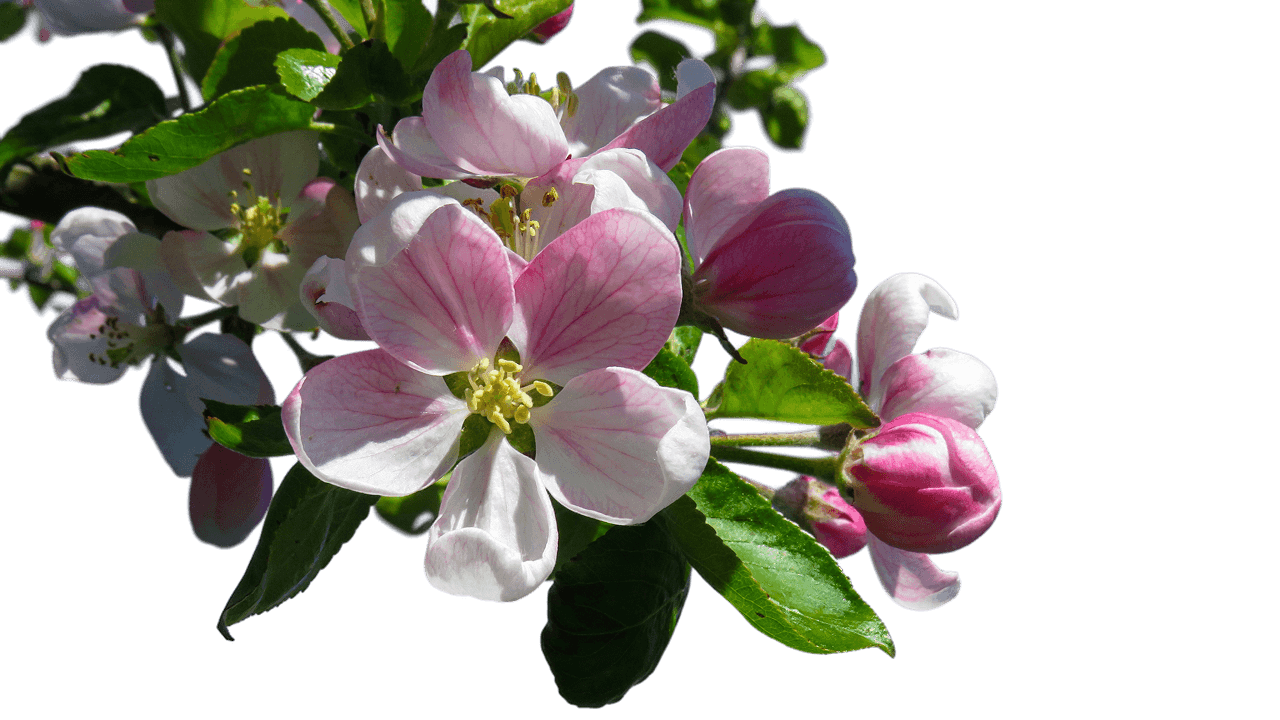
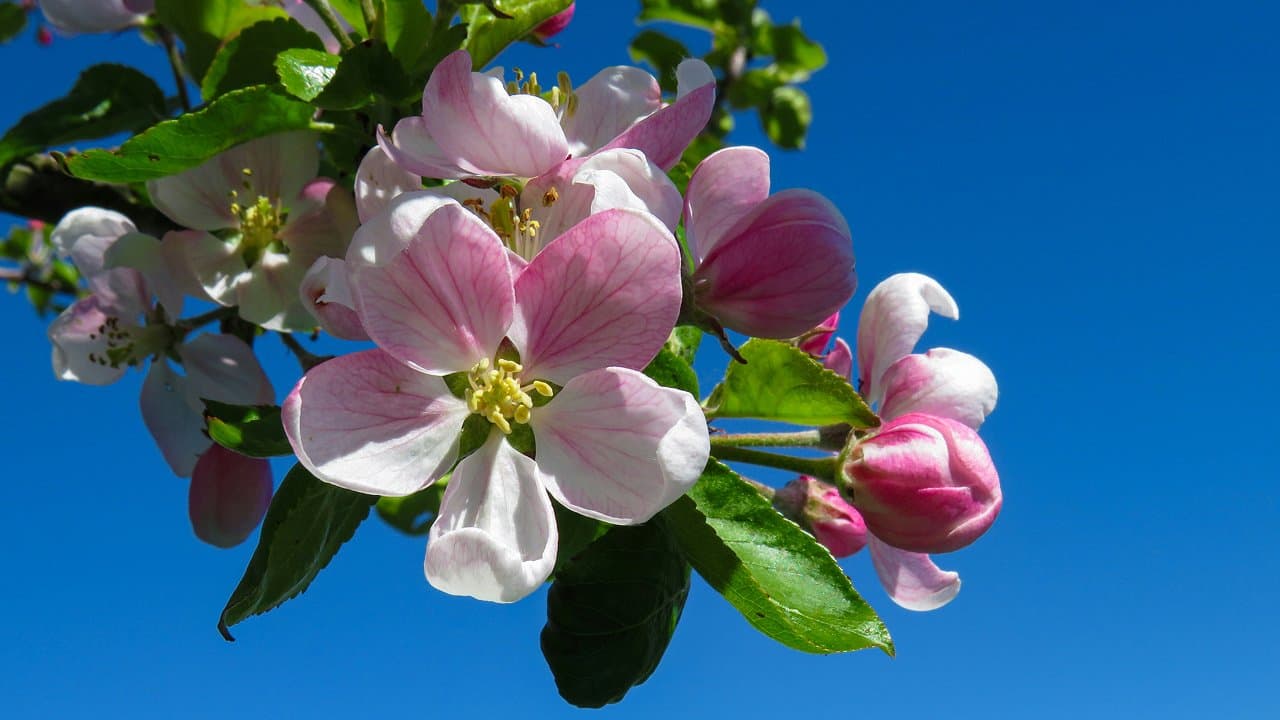
Download a transparent PNG
Every result is a PNG with a transparent background, so the Background Remover also works as a quick PNG maker. Drop the cut-out into Canva, PowerPoint, a website, or a design file and put any color or scene behind it later.
Use it as a transparent background maker whenever you need to make a background transparent: upload, remove, download. Your first edit is free. Want to know how transparency works and why JPG files cannot keep it? Read our guide to making an image transparent.
Product photos for online stores and listings
Clean cut-outs make products easier to see in a shop grid or a marketplace listing. Remove the table, room, or clutter behind a product, then place it on your store's own background or a plain color so every item in a collection looks consistent.
For a step-by-step walkthrough, see how to remove the background from a product photo.
Portraits and profile pictures
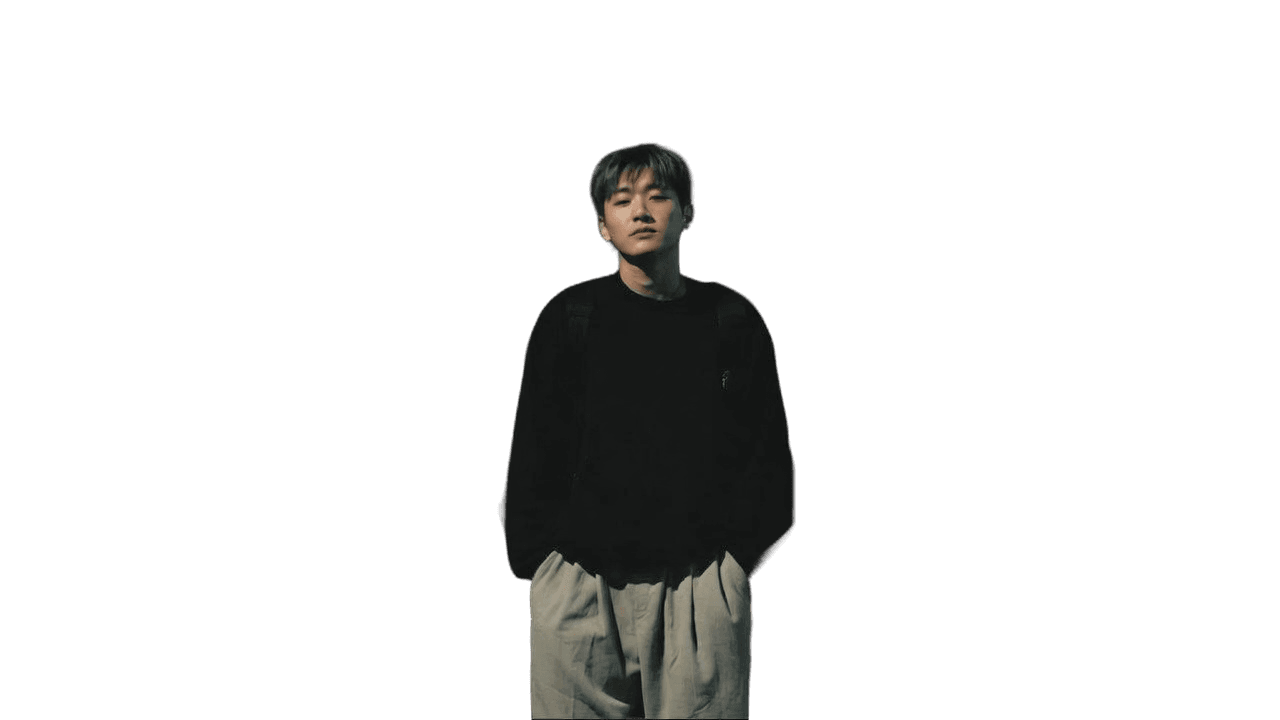
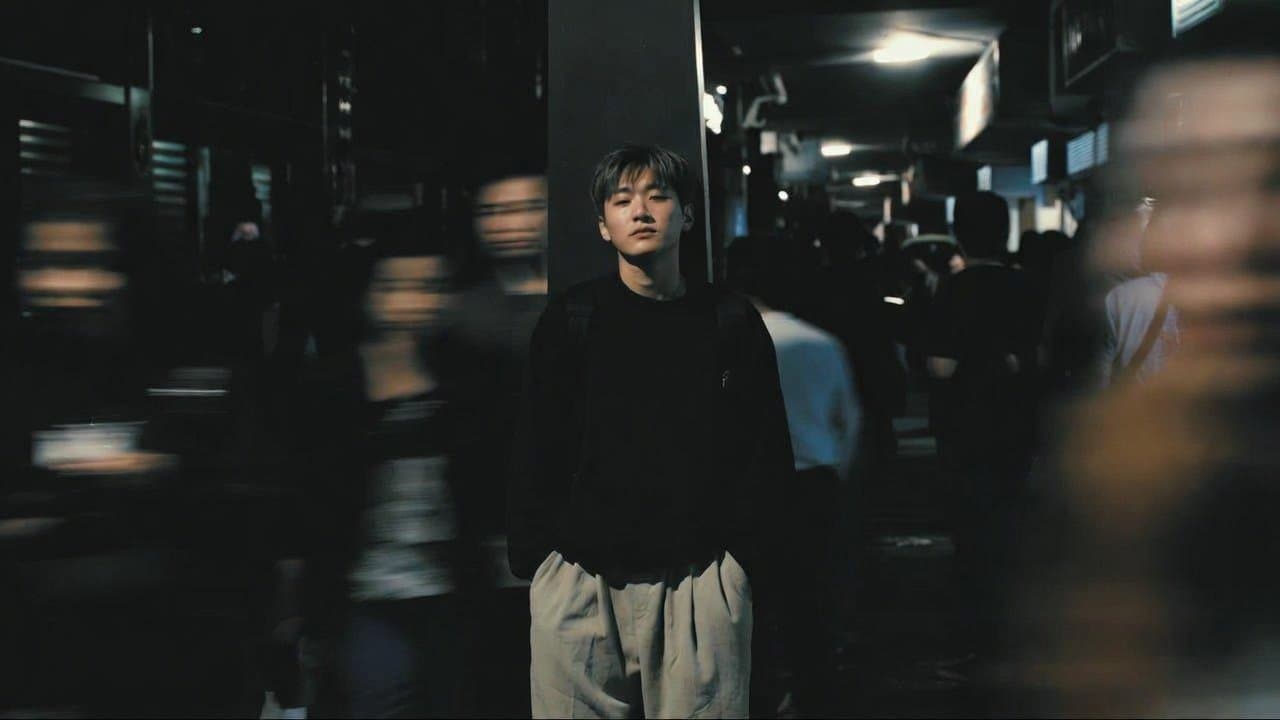
Remove a busy background from a portrait to make a clean profile picture, a team photo for your website, or a cut-out for a thumbnail or a poster. With the transparent PNG, you can add a brand color or a gradient behind the person.
Logos and signatures
Turn a logo or a signature on paper into a transparent PNG so it sits cleanly on documents, slides, and websites without a white box or a paper texture around it. Use a sharp, high-contrast photo or scan for the cleanest edges. Our guide to removing the background from a signature walks through it step by step.


What it works best on
The Background Remover gives the cleanest results on images with one clear subject, sharp edges, and good contrast against the background, such as a product on a table or a person in front of a wall.
Fine or flyaway hair, fur, glass, and objects that blend into a similar-colored background are harder, and the edges may need a second look. Compare the result with the original at full size before you use it.
More ways to edit backgrounds
Need a finished photo instead of a transparent one? Use the Background Changer to change the background to white, black, or something custom. Prefer to do it by hand? Learn how to remove a background in Canva or remove a background in Photoshop.
To clean up a photo you own before you cut it out, the AI watermark remover removes visible watermarks, logos, and stamps.
Frequently asked questions
Background remover questions
How to remove the background from an image, what you get, and what works best.
Your first image edit is free, with no credit card required. Upload a photo, remove its background, and check the result before you decide whether you need more edits.
You get a PNG with a transparent background, so you can place the cut-out on any color, design, or slide. JPG files cannot keep transparency, so keep the PNG if you need the empty background.
You can upload JPG, PNG, or WebP images up to 20 MB.
Photos with one clear subject, sharp edges, and good contrast against the background give the cleanest cut-outs. Fine or flyaway hair, glass, and objects that blend into the background are harder, so check the edges at full size before you use the result.
Yes. If you want a finished photo rather than a transparent one, use the Background Changer to put your subject on a white, black, or custom background.
Your first cleanup is on us
No credit card, no design skills, no learning curve — upload a photo and see the result in seconds.