You can pick a clean white background, a black background, or Custom. With Custom, you describe the background you want, such as a soft beige studio wall, and the AI creates it behind your subject.
AI background changer
Change the background of any photo
Upload a photo, pick a white, black, or custom background, and the AI swaps it in seconds. Made for product shots, portraits, and listings.
Upload an image
First edit is free. No credit card required.
Background Changer
Upload a photo to change its background
Drop in an image, choose white, black, or a custom background, and get the new version in seconds.
Drag and drop your image here
JPG, PNG, or WebP
How the AI background changer works
- 01
Step 1
Upload your photo
Choose a JPG, PNG, or WebP photo with a clear subject, such as a product, a person, or a car.
- 02
Step 2
Pick white, black, or custom
Choose a white or black background, or pick Custom and describe the background you want.
- 03
Step 3
Compare and download
Check the edges against the original at full size, then download the photo with its new background.
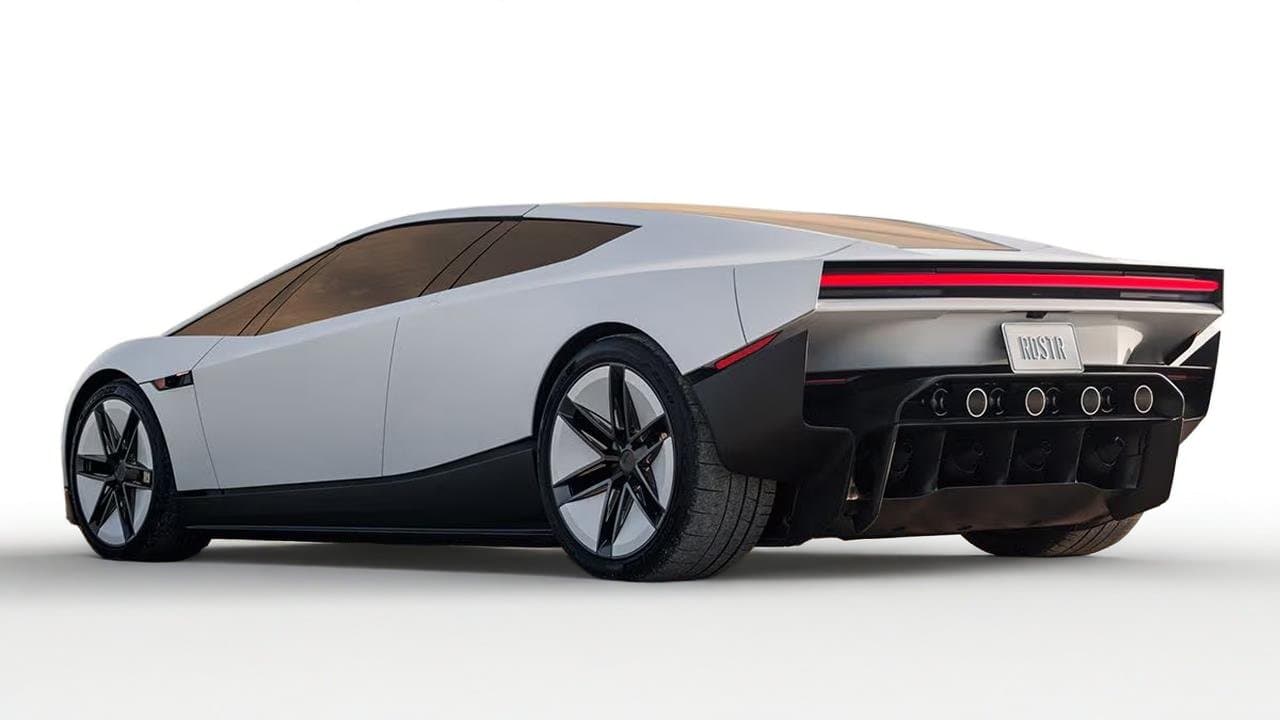
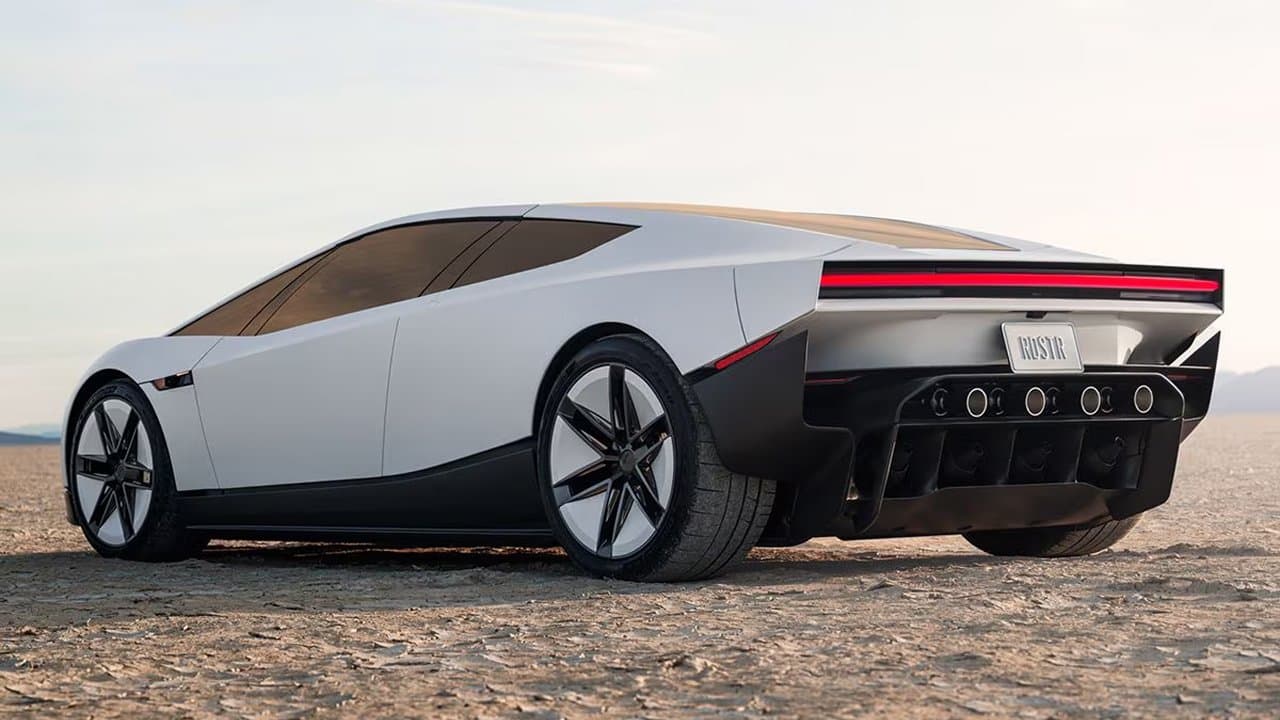
White backgrounds for product photos and listings
Marketplaces and online stores often ask for product photos on a clean white background. Instead of setting up a light box, you can add a white background to a photo you already have: upload it, pick White, and the AI replaces the room, table, or clutter behind your product.
It is a quick way to change a photo background to white for a whole set of listings, so every product sits on the same plain backdrop. Check the marketplace's own image rules for size and framing before you upload.
Black and custom backgrounds
White is not the only option. Pick Black for a bold, high-contrast look that makes watches, jewelry, and other bright or metallic products stand out, or to give a portrait with a busy background a clean, dramatic look.
To change the background color of a photo to something else, or to put your subject in a new scene, choose Custom and describe what you want, such as “a soft beige studio wall” or “a marble kitchen counter”. The AI photo background changer generates that background behind your subject.
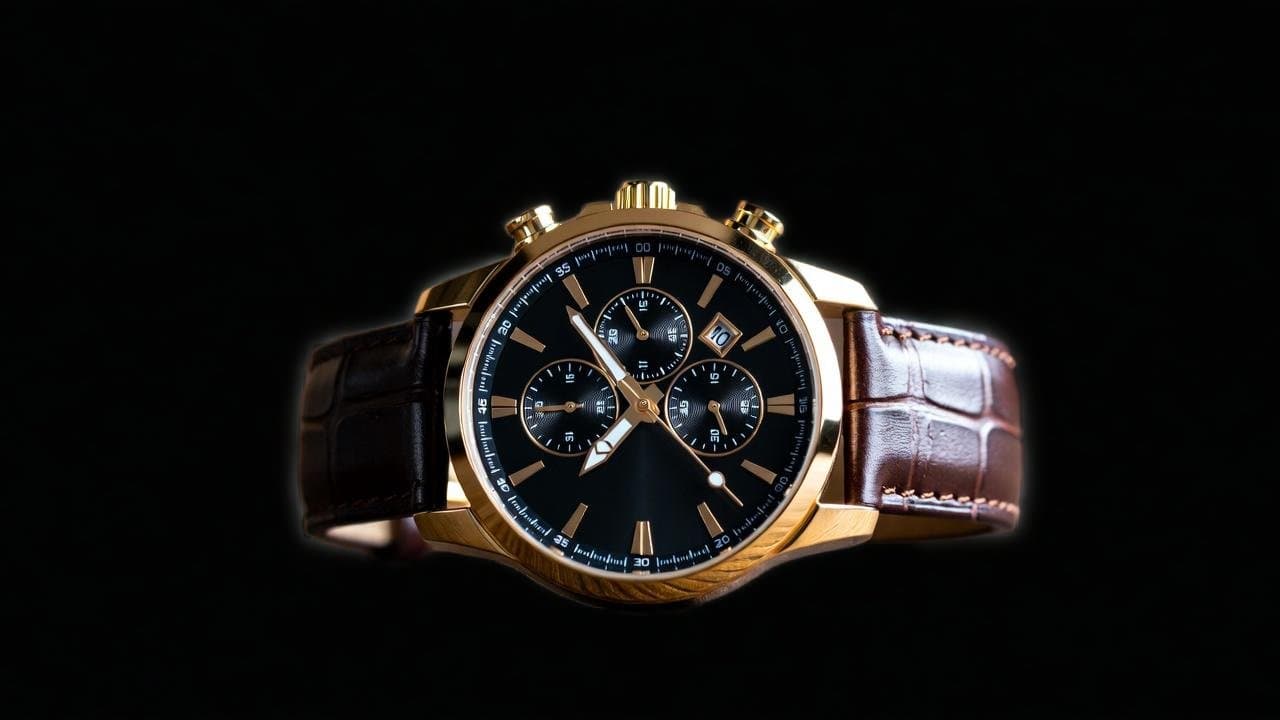
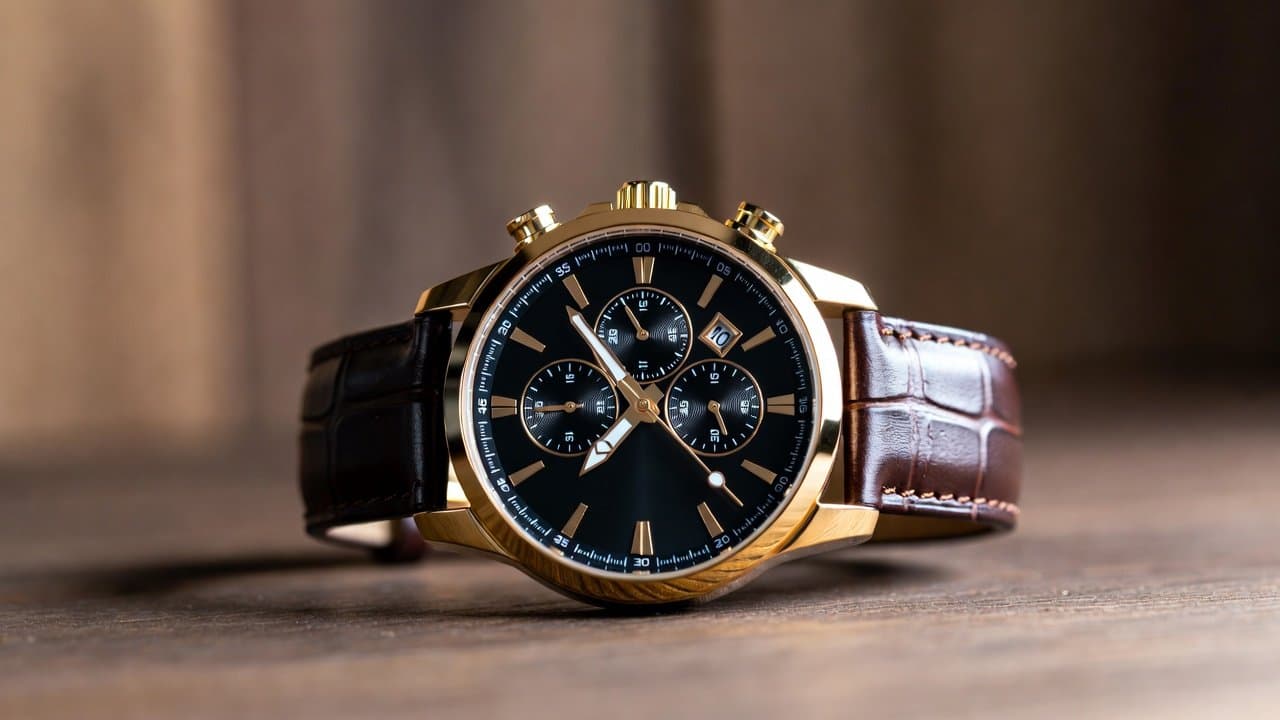
Passport-size photo with a white background
Many passport and ID photos need a plain white or light background. If your portrait was taken against a wall or a busy room, you can use the background changer to put it on a plain white background.
Passport and visa photo rules differ by country and are strict about size, lighting, head position, and how much a photo may be edited. Always check the official requirements of the authority issuing your document before you submit a photo. PerfectifyAI does not guarantee that an edited photo will be accepted.
What it works best on
The background changer gives the cleanest results on photos with one clear subject, sharp edges, and good contrast against the original background, such as a product on a table or a person in front of a wall.
Fine or flyaway hair, fur, glass, and other transparent or reflective objects are harder, and the edges may need a second look. Compare the result with the original at full size before you use it.
More ways to edit backgrounds
Want to do it by hand, or compare your options? Read our guide to changing the background of a photo.
Need no background at all? Use the Background Remover to remove an image background and make a transparent PNG. To clean up a photo you own first, the AI watermark remover removes visible watermarks, logos, and stamps.
Frequently asked questions
Background changer questions
Which backgrounds you can use, what works best, and when to choose a transparent background instead.
Your first image edit is free, with no credit card required. Upload a photo, change its background, and check the result before you decide whether you need more edits.
Photos with one clear subject, sharp edges, and good contrast against the original background give the cleanest results. Fine or flyaway hair, glass, and other transparent or reflective objects are harder, so check the edges at full size before you use the result.
You can use it to put a portrait on a plain white background. Passport and ID photo rules differ by country and are strict about size, lighting, and editing, so check the official requirements of the authority issuing your document before you submit an edited photo. PerfectifyAI does not guarantee that a photo will be accepted.
You can upload JPG, PNG, or WebP images up to 20 MB.
Choose a white background when you need a finished image, such as a product photo for a marketplace listing. If you want to place the subject on any design later, use the Background Remover instead to make a transparent PNG.
Your first cleanup is on us
No credit card, no design skills, no learning curve — upload a photo and see the result in seconds.